

Add files
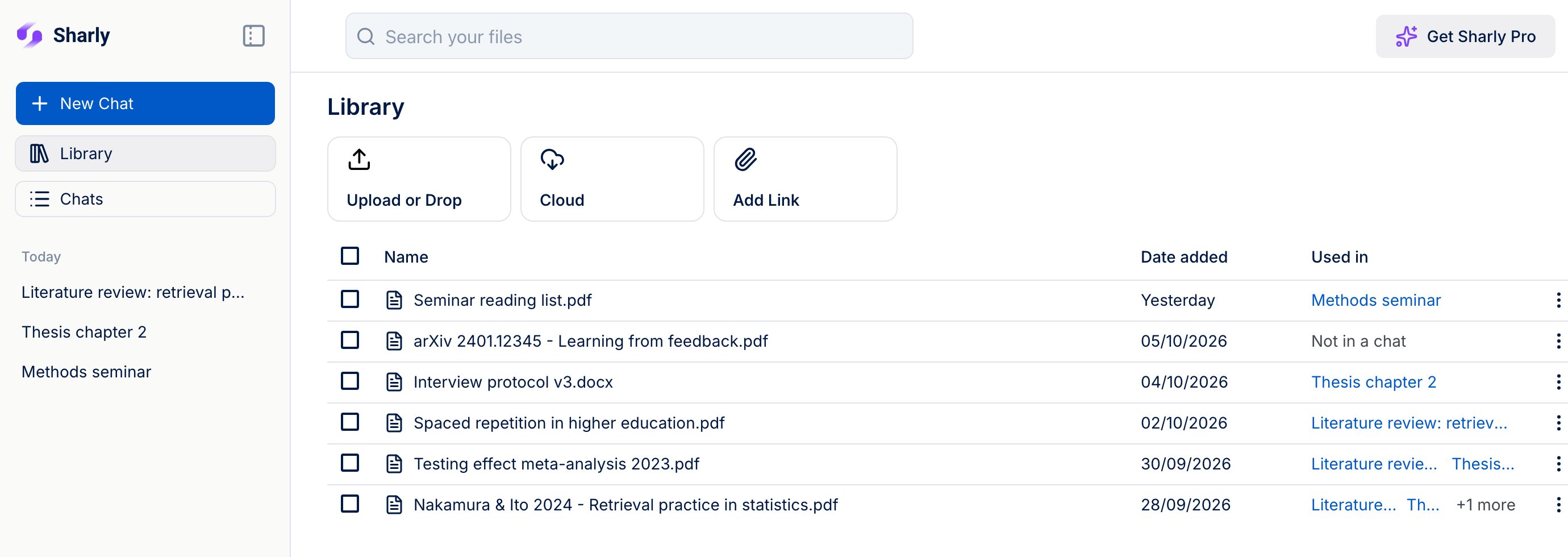
At the top of the Library, choose how to add a file:
Files you add here wait in your Library until you start a chat with them. To add a file and start chatting straight away, use New Chat in the sidebar instead.
Find and open files
- Search your files with the search bar at the top.
- Used in shows the chats that use each file. Click a chat to open it, or +N more to see the rest.
- Click a file to open it in a new tab.
Start a chat with several files
1
Select the files
Tick the files you want, up to 100.
2
Click Chat with selected
Sharly starts a new chat with those files, ready for your questions.
Delete files
Select one or more files and click Delete selected, or use Delete in a file’s actions menu. Before anything is deleted, Sharly tells you which chats the file will be removed from. Deleting removes the file from your Library and from every chat that uses it, and can’t be undone.New accounts find the Sample document in their Library. Upload your own files to keep them here.