

Connect and import
1
Open Add sources in your Library
In the sidebar, open Library and click Add sources. Choose Connect an app, then Zotero or Mendeley. Once connected, the app is listed by name under From your apps.
2
Connect your account
Sign in when Zotero or Mendeley asks you to. Sharly requests read-only access.
3
Pick what to import
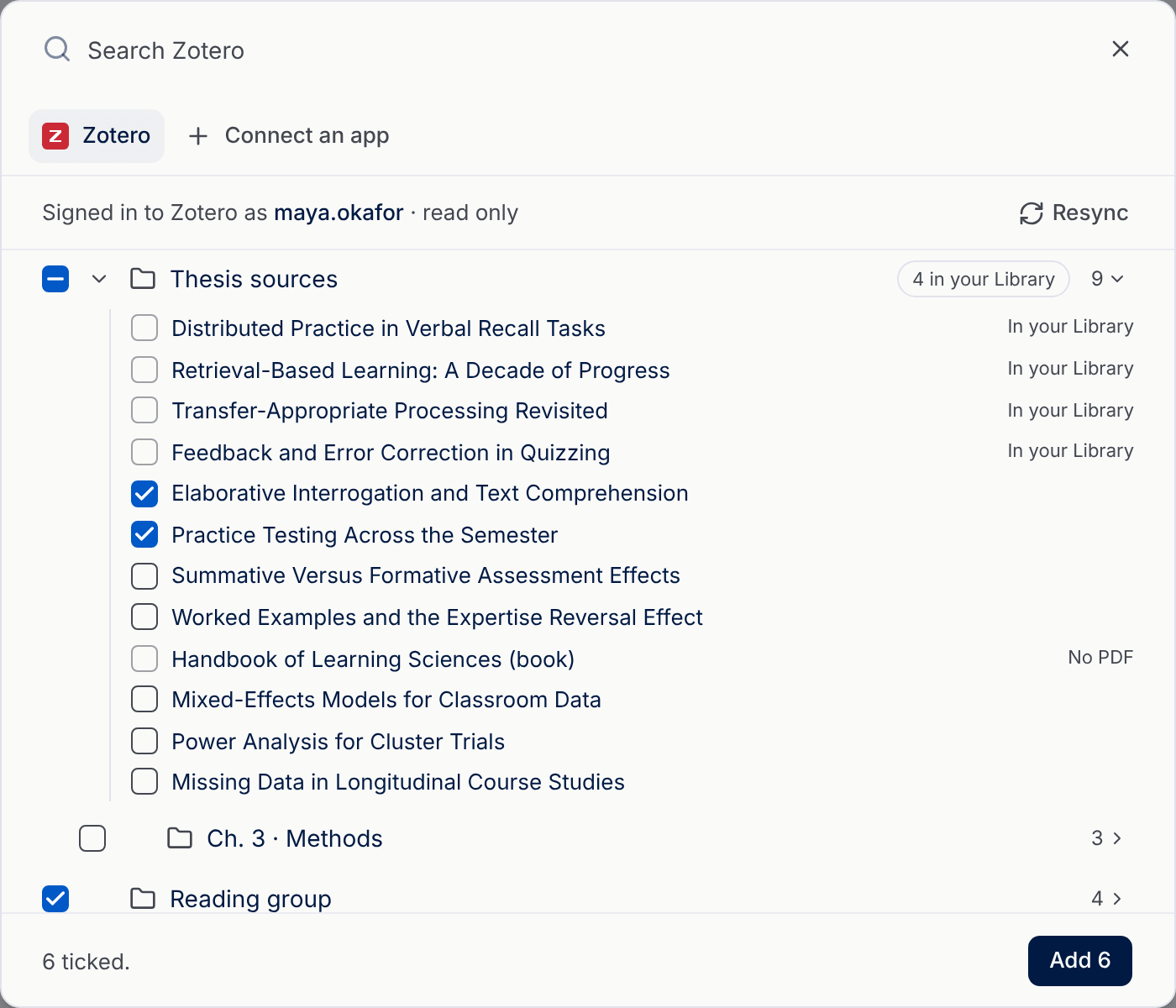
Your Zotero collections or Mendeley folders appear with their counts. Tick a whole collection, or open it and tick single papers. Use the search box to find a paper.
4
Click Add
Your papers appear in the Library as they are read. You can leave the page; a paper is ready to chat with as soon as it shows as ready.
Keep your Library in sync
Press Resync in the Zotero or Mendeley picker, or choose Resync from Zotero (or Mendeley) in the folder’s menu. Sharly first shows what is new since your last import, then adds it with one press.Your collections as folders
Each imported collection or Mendeley folder becomes a folder in your Library.- Click the folder to see only its papers.
- When part of a collection is still in your reference manager, the folder says so under its papers, for example 7 more sources in Zotero. Click Add to pick them.
- Ask the whole folder in the box at the foot of its page. A chat reads up to 100 papers, so a larger folder asks the 100 most recently added.
Citations for imported papers
Imported papers get the same Cite button as any other paper: APA, in-text, BibTeX and RIS for every journal article Sharly can verify. Where it can’t, the Cite button shows the reference from your Zotero or Mendeley library, labelled as such. See Sources & Citations.How many papers are read
Imported papers count as uploads. See Limits.- Free — Sharly reads 5 papers a day. In the picker, you can tick as many papers as you have left today. Pick the rest after your allowance renews.
- Pro, Team and Business — Sharly reads up to 100 papers an hour. Tick everything you want at once. The first batch is added straight away, and the rest stay ticked. The notice at the top of the Library tells you when the next batch can be added: click Add next then.
Disconnect
Click Add sources, choose Connect an app, and click Disconnect beside Zotero or Mendeley. Sharly stops reading your library, and the papers you already imported stay in your Library.Disconnecting Zotero deletes Sharly’s access key in Zotero. If that fails, delete the key named Sharly at zotero.org/settings/keys.