> ## Documentation Index
> Fetch the complete documentation index at: https://docs.sharly.ai/llms.txt
> Use this file to discover all available pages before exploring further.
# Library
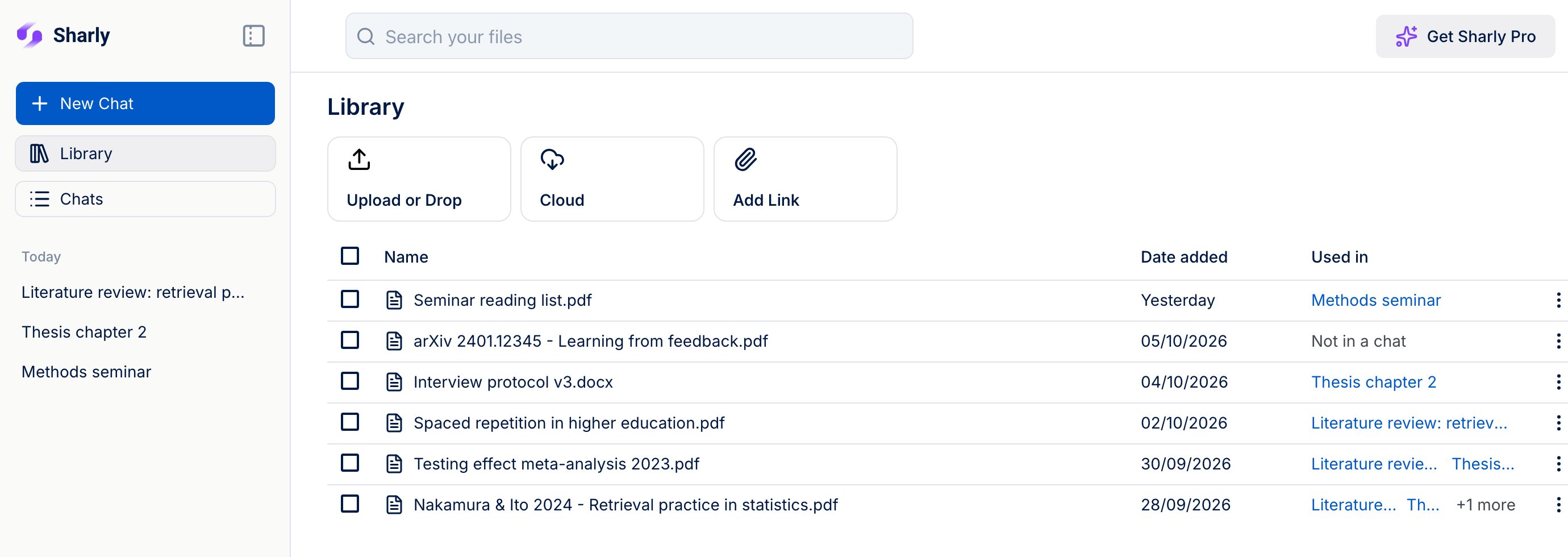
> Every file you give Sharly, in one place: add papers and documents, see which chats use them, start a chat with several files, and delete files you no longer need.
The **Library** keeps every file you give Sharly, listed once, with the chats that use it. Open it from **Library** in the sidebar.
 ## Add files
At the top of the Library, choose how to add a file:
| Option | What it does |
| - | - |
| **Upload or Drop** | Upload files from your computer |
| **Cloud** | Import from Google Drive, Dropbox or Notion |
| **Add Link** | Import a web page, an arXiv paper or a DOI. See [Add a link or paper ID](/document-summarization/uploading-documents#add-a-link-or-paper-id) |
Files you add here wait in your Library until you start a chat with them. To add a file and start chatting straight away, use **New Chat** in the sidebar instead.
## Find and open files
* **Search your files** with the search bar at the top.
* **Used in** shows the chats that use each file. Click a chat to open it, or **+N more** to see the rest.
* **Click a file** to open it in a new tab.
A file that is still being read shows **Processing**. A file Sharly couldn't read shows **Failed**; upload it again or try another copy.
## Start a chat with several files
Tick the files you want, up to 100.
Sharly starts a new chat with those files, ready for your questions.
## Delete files
Select one or more files and click **Delete selected**, or use **Delete** in a file's actions menu.
Before anything is deleted, Sharly tells you which chats the file will be removed from. Deleting removes the file from your Library and from every chat that uses it, and can't be undone.
New accounts find the **Sample** document in their Library. Upload your own files to keep them here.
This documentation is built and hosted on [Mintlify](https://mintlify.com), a developer documentation platform.
## Add files
At the top of the Library, choose how to add a file:
| Option | What it does |
| - | - |
| **Upload or Drop** | Upload files from your computer |
| **Cloud** | Import from Google Drive, Dropbox or Notion |
| **Add Link** | Import a web page, an arXiv paper or a DOI. See [Add a link or paper ID](/document-summarization/uploading-documents#add-a-link-or-paper-id) |
Files you add here wait in your Library until you start a chat with them. To add a file and start chatting straight away, use **New Chat** in the sidebar instead.
## Find and open files
* **Search your files** with the search bar at the top.
* **Used in** shows the chats that use each file. Click a chat to open it, or **+N more** to see the rest.
* **Click a file** to open it in a new tab.
A file that is still being read shows **Processing**. A file Sharly couldn't read shows **Failed**; upload it again or try another copy.
## Start a chat with several files
Tick the files you want, up to 100.
Sharly starts a new chat with those files, ready for your questions.
## Delete files
Select one or more files and click **Delete selected**, or use **Delete** in a file's actions menu.
Before anything is deleted, Sharly tells you which chats the file will be removed from. Deleting removes the file from your Library and from every chat that uses it, and can't be undone.
New accounts find the **Sample** document in their Library. Upload your own files to keep them here.
This documentation is built and hosted on [Mintlify](https://mintlify.com), a developer documentation platform.